Jellyfin, the free and fully self-hosted alternative to Plex. We run Plex day to day, so this one’s written straight: accurate, tested steps, without pretending it’s what’s actually serving our library.
jellyfin/jellyfin image.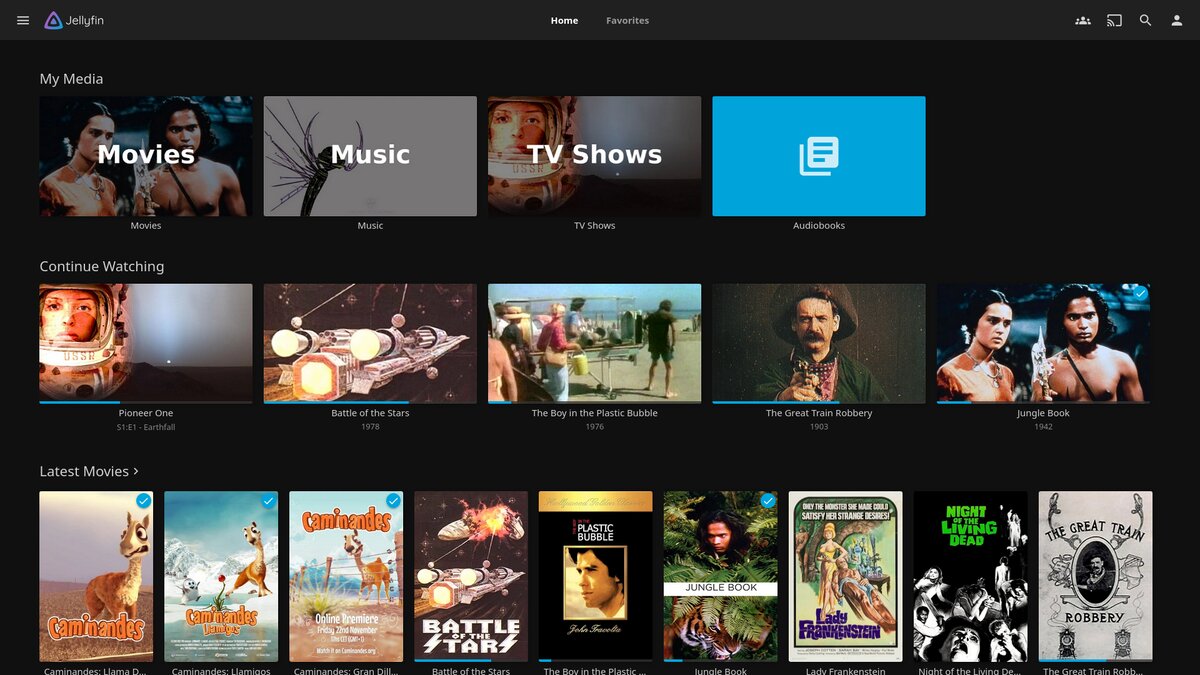
Step 1. Make the folders
Same pattern as the Plex guide. A docker/jellyfin folder in File Station with config and cache subfolders inside it, kept separate from the media library.
Step 2. The compose file
In Container Manager → Project → Create, point it at docker/jellyfin and use this, adjusting the media path to match your setup:
services:
  jellyfin:
    image: jellyfin/jellyfin:latest
    container_name: jellyfin
    environment:
      TZ: America/Chicago
    volumes:
      - /volume1/docker/jellyfin/config:/config
      - /volume1/docker/jellyfin/cache:/cache
      - /volume1/media:/data
    ports:
      - "8096:8096"
    restart: unless-stopped
network_mode: host for normal web-client use. Straight port mapping works fine. Jellyfin’s own docs recommend host networking specifically for DLNA auto-discovery, so skip it unless you actually need that.Step 3. Finish setup in the browser
Deploy the project, then go to http://YOUR_NAS_IP:8096. Jellyfin’s first-run wizard runs entirely locally, with no account on a third-party service, which for a lot of people is the entire point. Set your admin account, point it at the /data path you mapped, name your libraries, let it scan.
Step 4. Hardware transcoding, if you need it
Jellyfin’s hardware acceleration lives in Dashboard → Playback, and it’s available to everyone. No Plex Pass equivalent required, which is a real difference from Plex.
Whether it actually works comes down to your NAS having a supported hardware encoder and that encoder being exposed into the container correctly. Check your specific Synology model before assuming it’s there.
That closes out the media-server half of this series. Both solve the same problem differently. Plex leans on a company’s infrastructure and polish, Jellyfin keeps everything local and hands you the work. Worth knowing both even if you only run one.
Switching over rather than starting fresh? There’s a dedicated guide for pulling your watch history across: migrating from Plex to Jellyfin.
One thing neither protects you from is losing the NAS itself. Next: Backups and Snapshots →